

Austin Community College (ACC) has completed its migration from Blackboard Learn to Blackboard Ultra, a next-generation learning management system (LMS). This upgrade introduced a modern, intuitive interface and advanced capabilities designed to enhance teaching, learning, and course management for both faculty and students.
Getting Started with Blackboard Ultra
The move to Blackboard Ultra aimed to take advantage of its streamlined navigation, flexible instructional tools, and improved accessibility. The platform provides a consistent user experience across all devices, making it easier for students and faculty to interact with course content anytime, anywhere.
What’s New in Blackboard Ultra?
- A modern, user-friendly design
- Enhanced accessibility across all devices (desktop, tablet, and mobile)
- Simplified navigation and course management
- Flexible grading options and improved instructional tools
- Increased accessibility for all users
- Streamlined communication and collaboration features
Summer 2025 – Full Implementation
- All instructional activities officially transitioned to Blackboard Ultra
Summer 2024 – Spring 2025: Training & Course Preparation
- Face-to-face and HyFlex departmental training sessions
- Asynchronous training modules made available
- Drop-in support sessions offered for ongoing assistance
- Ultra course shells provided for faculty course development
- Instruction continued in Blackboard Learn during this transition period
Spring 2024 – Planning Phase
- Change Management Plan developed
- Biweekly LMS Transition Team meetings (faculty and staff collaboration)
- Creation and refinement of in-house training resources
Support for Faculty
To ensure a smooth transition, we have developed a comprehensive asynchronous training module. This self-paced resource allows you to explore the Ultra experience and transition your course materials whenever it best fits your schedule.
Asynchronous Blackboard Ultra Training
Learn to convert courses to Blackboard Ultra with our self-paced course. To access the course:
- Log in to ACC’s Blackboard site
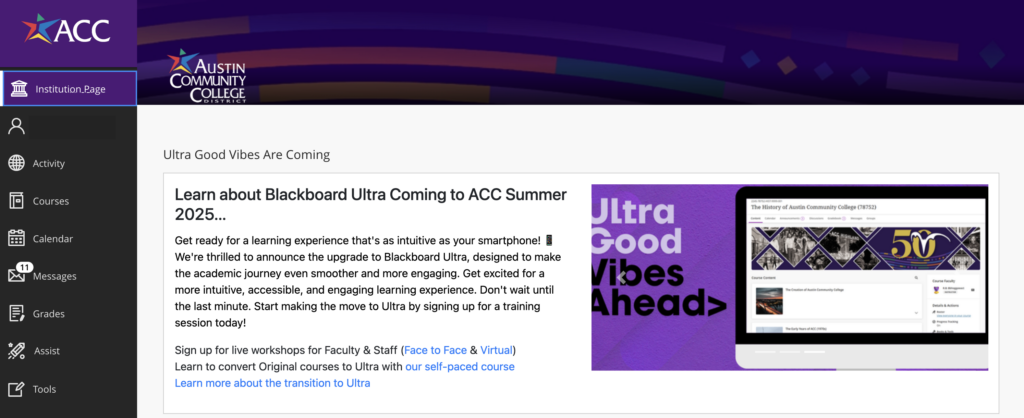
- Select “Institution Page”
- At the top of this page, you’ll find a link to “our self-paced course.” Click the link to self-enroll and complete the brief survey to access course content.
Enhance Your Course with VoiceThread
VoiceThread is a collaborative tool that allows users to create, share, and comment on images, websites, documents, and videos. In this workshop, you will learn how to create VoiceThreads and then add them to your Blackboard Ultra course as lessons, discussions, or assessments.
This will be a hand-on workshop where you can follow along with the activities and add VoiceThreads into your course modules.
Blackboard Ultra Resources
Make Your Syllabus Instantly Accessible
Ensure your students can find your syllabus in under 10 seconds! Place it at the top of your Start Here module with no extra clicks. Clear, accessible syllabi drive engagement from day one. Learn tips for LMS-friendly formatting and screen reader compatibility.
Start Your Course with Clarity
First impressions matter! This guide shows you how to welcome students in Blackboard Ultra with a warm announcement and a “Start Here” module. Clear entry points reduce student anxiety and set a positive tone. Learn to use concise titles and easy navigation to guide students through your expectations from day one.
Keep Students Informed About Their Progress
Students often ask, “How am I doing?” To provide transparent feedback in Blackboard Ultra: post clear grade-tracking instructions, give updates before deadlines, and ensure final grades appear in the overall column. This supports student success and reduces surprises.
Have questions or need guidance? For a one-on-one consultation, please contact DE instructional support at [email protected]
Back to Top